Webhooks - web UI guide
This guide shows how to add a webhook endpoint in the SUPER web app, get the secret, send a test event, and track deliveries. The technical guide for developers (signature, JSON, retry rules) is here. Note: the screenshots show the Croatian user interface.
1. Where to find webhooks
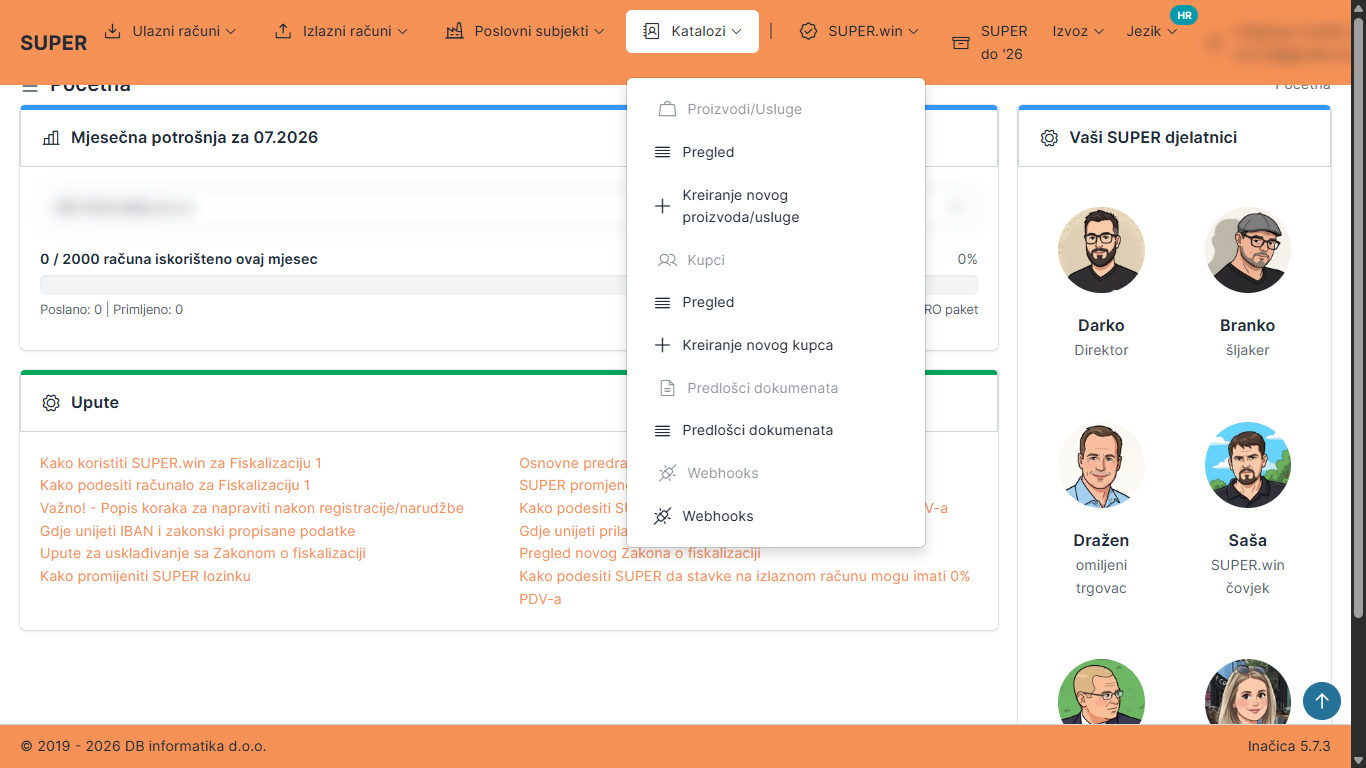
Log in to the app. In the main menu open Katalozi (Catalogs) and pick Webhooks at the bottom.
2. Endpoint list
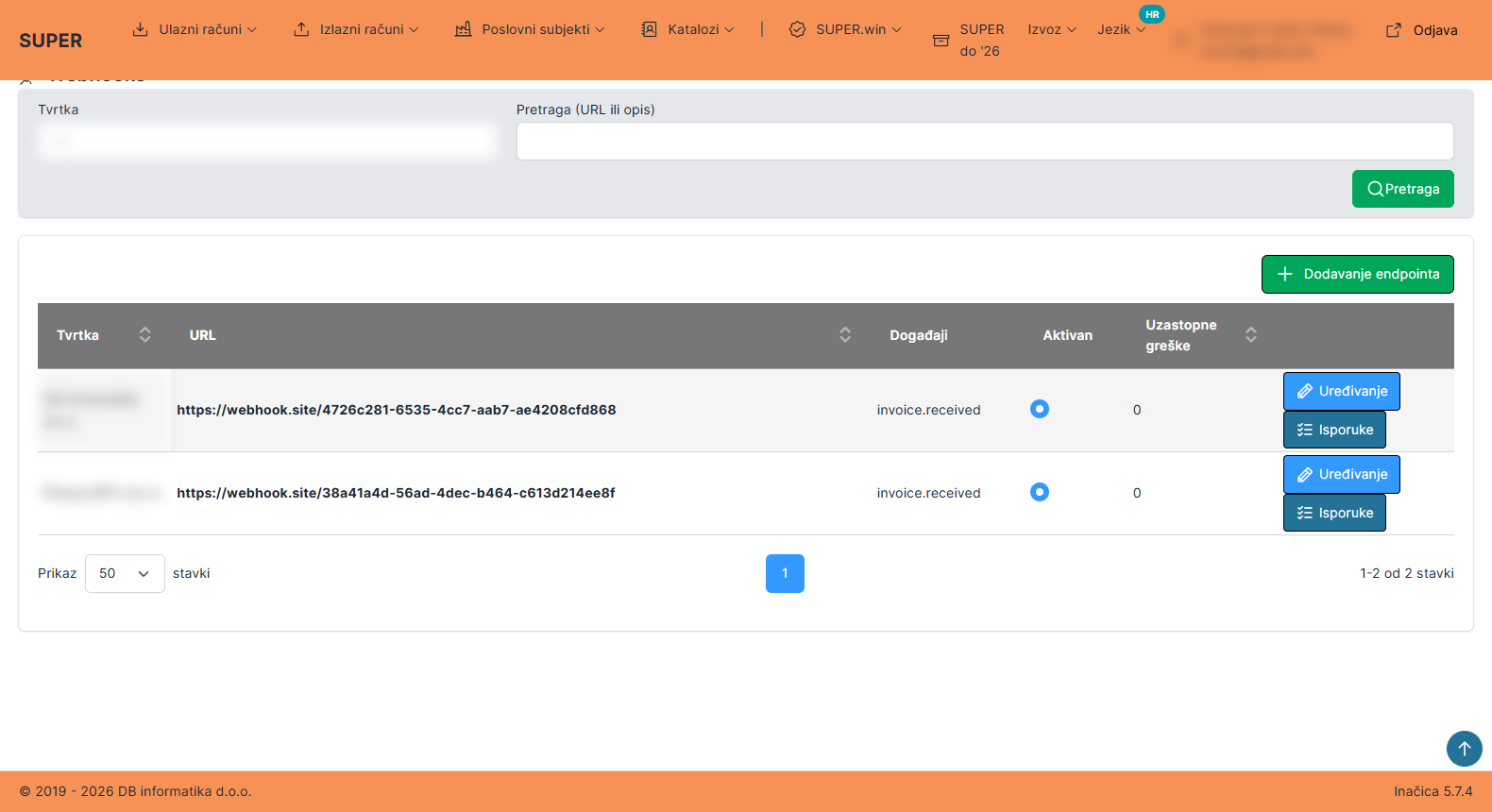
The list shows all your endpoints: company, URL, subscribed events, active state, and the consecutive failure count. You can filter by company and search by URL or description.
3. Adding an endpoint
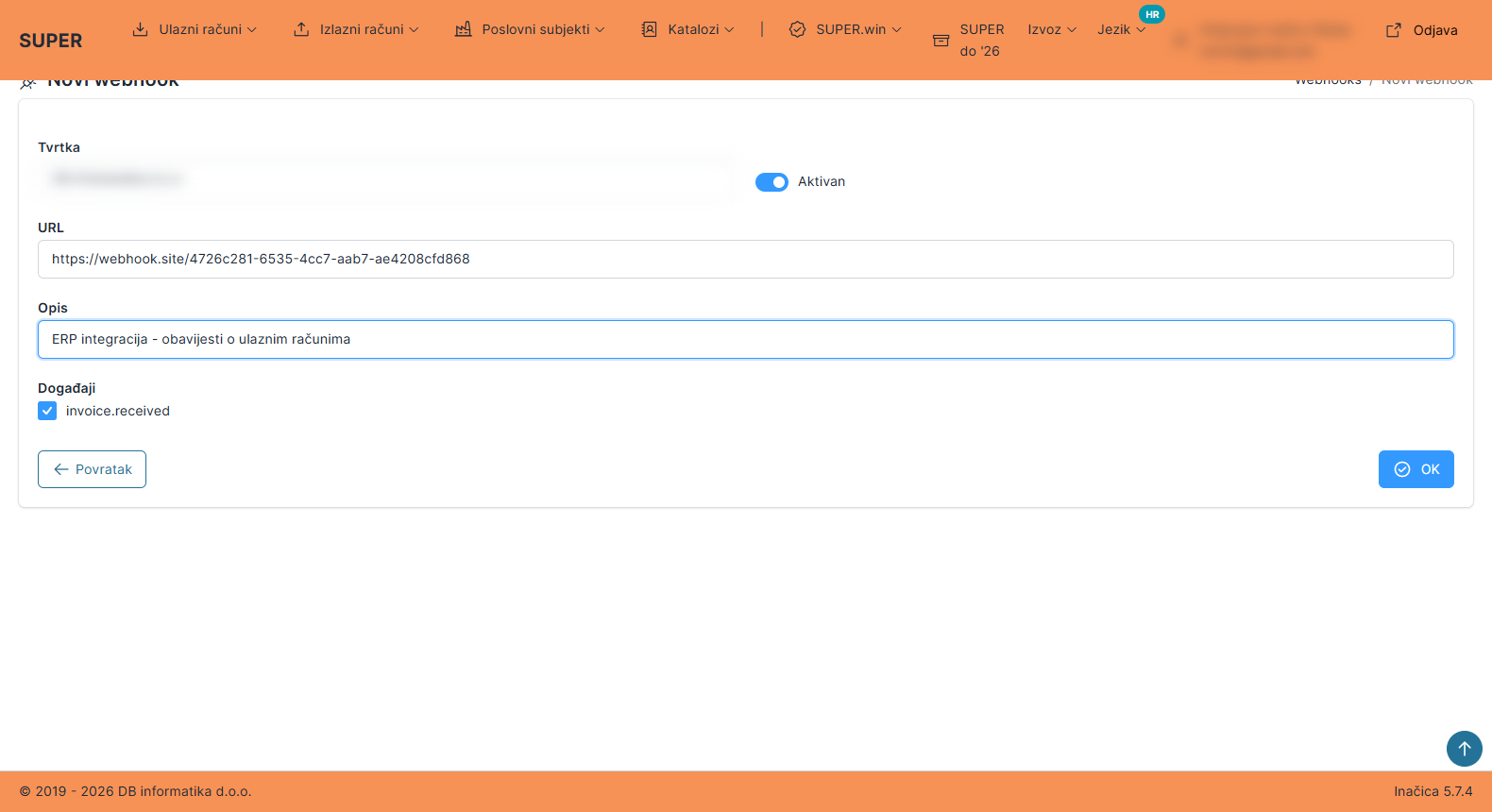
Click Dodavanje endpointa (Add endpoint) and fill in the form:
| Field | What to enter |
|---|---|
| Tvrtka (Company) | Pick the company this endpoint receives events for. |
| URL | The address of your system where we send the POST. Must be https and publicly reachable (http://, localhost, and internal IP addresses are rejected). |
| Opis (Description) | Free text for your own records (optional). |
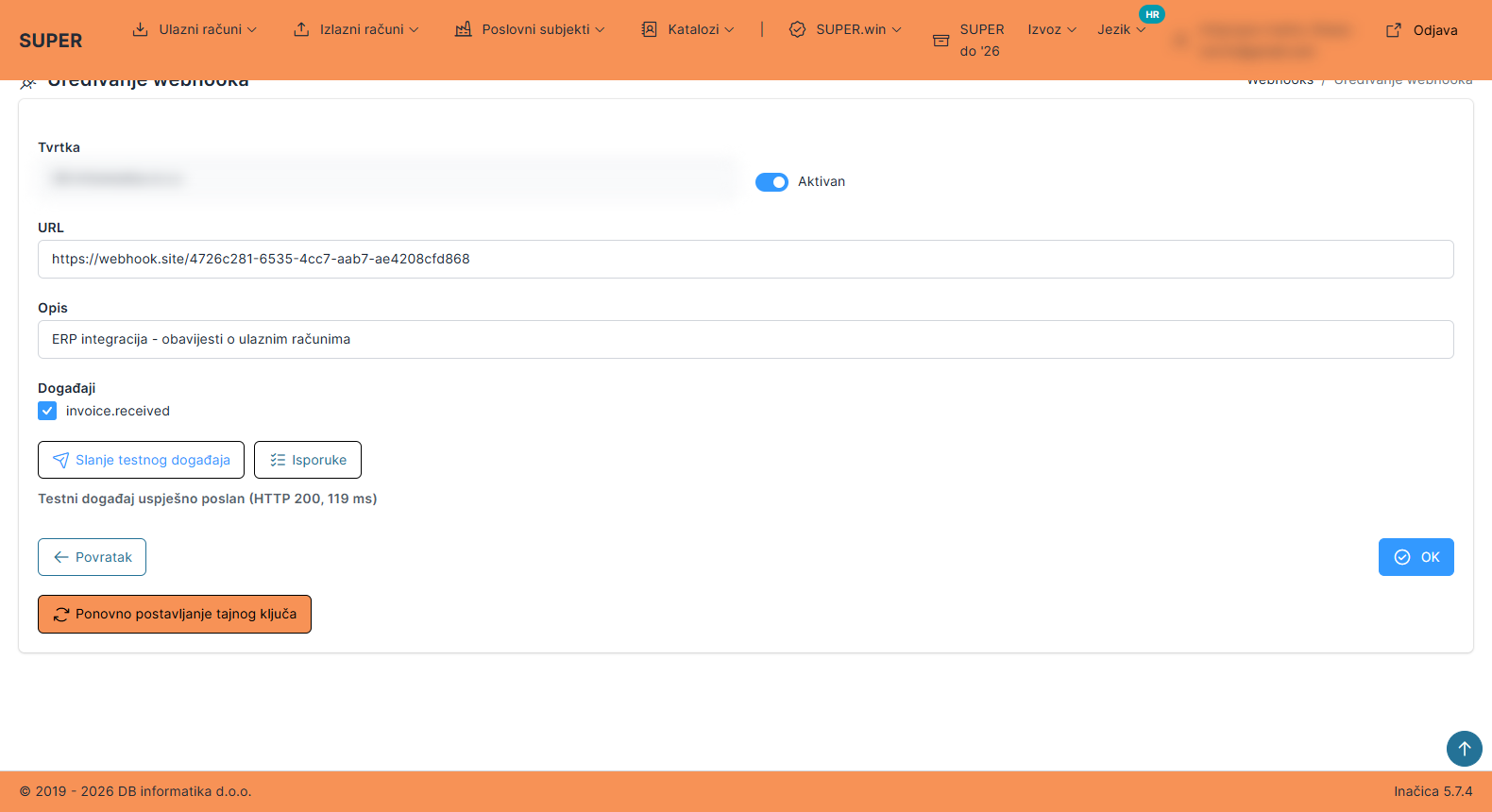
| Događaji (Events) | Check invoice.received (new incoming invoice). |
| Aktivan (Active) | Leave it on so the endpoint receives events right away. |
4. The secret - shown only once!
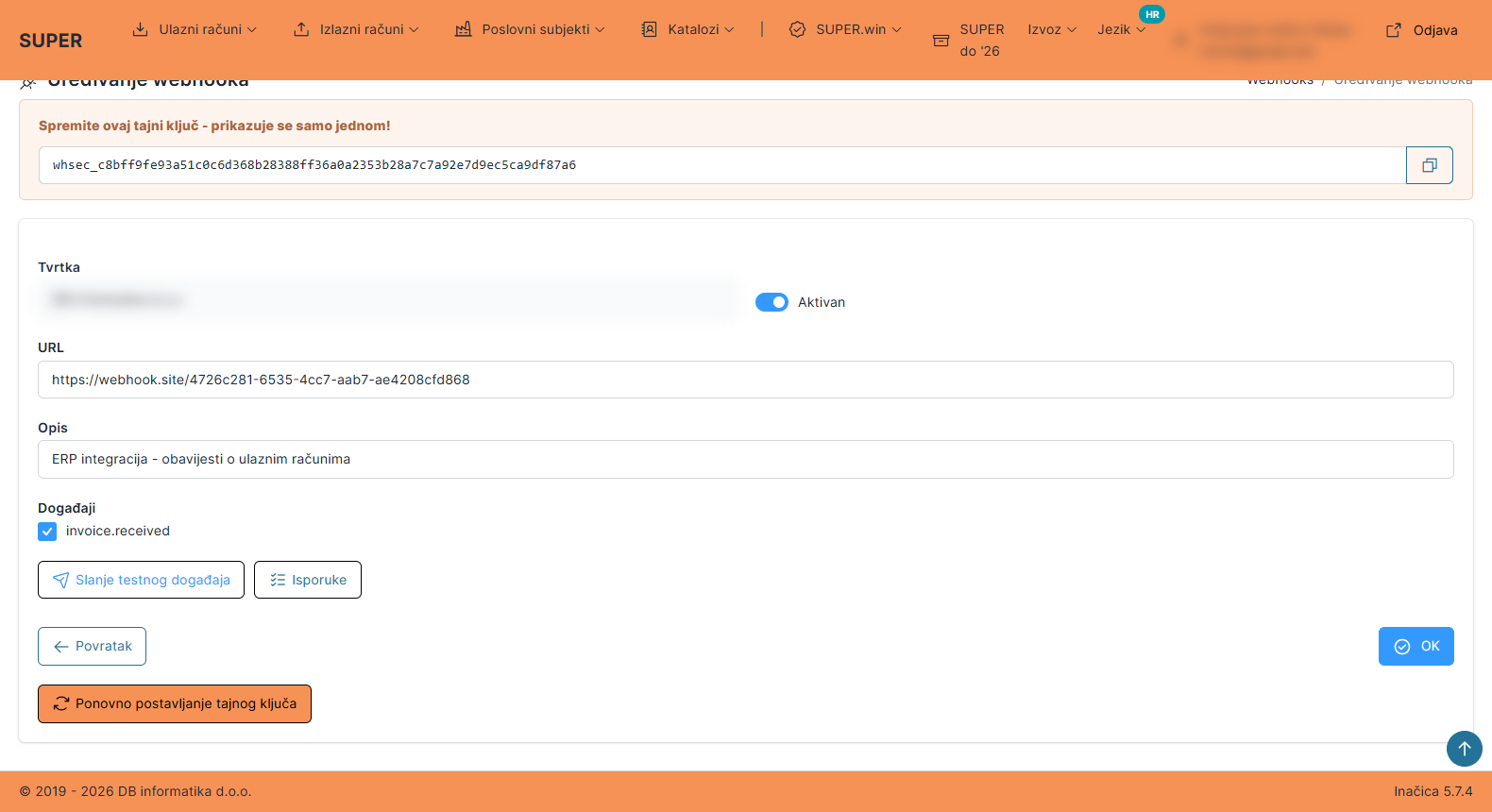
After saving, a yellow alert shows the secret that starts with whsec_. Click the copy icon and store the secret in a safe place.
5. Test event
On the endpoint edit page click Slanje testnog događaja (Send test event). The app immediately sends a test request to your URL and shows the result (HTTP status and duration). The test request has "test": true in the body and does not create a delivery record.
6. Deliveries and resend
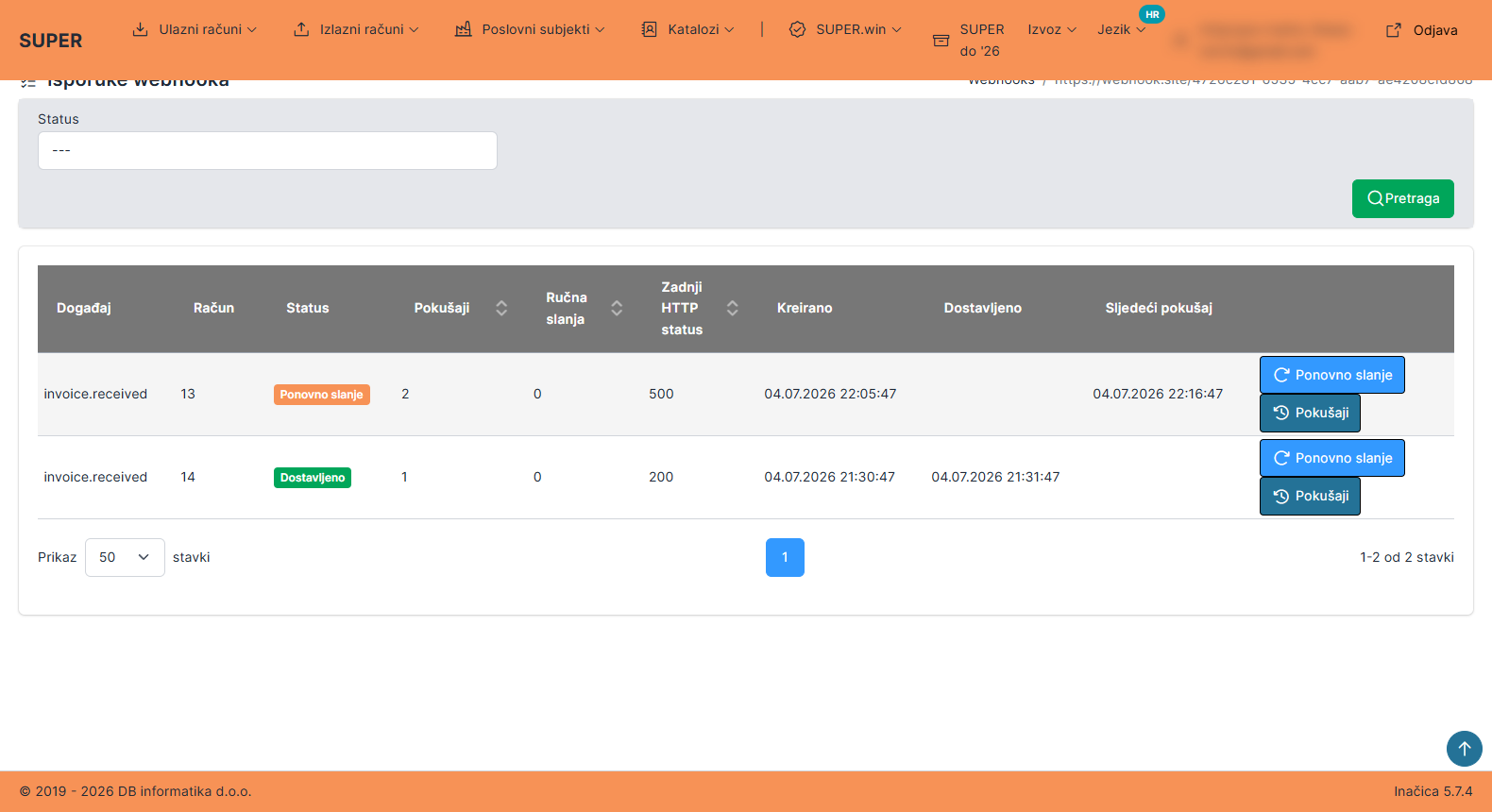
The Isporuke (Deliveries) button opens the delivery log for the endpoint - one row per invoice. Statuses:
| Status | Meaning |
|---|---|
| Čeka slanje | Pending - waiting for the first send (within one minute). |
| Ponovno slanje | Retrying - the send failed; the system retries automatically (the next attempt time is shown). |
| Dostavljeno | Delivered - your system answered with a 2xx status. |
| Trajno neuspješno | Failed (final) - all automatic attempts are used up. You can trigger a new attempt manually. |
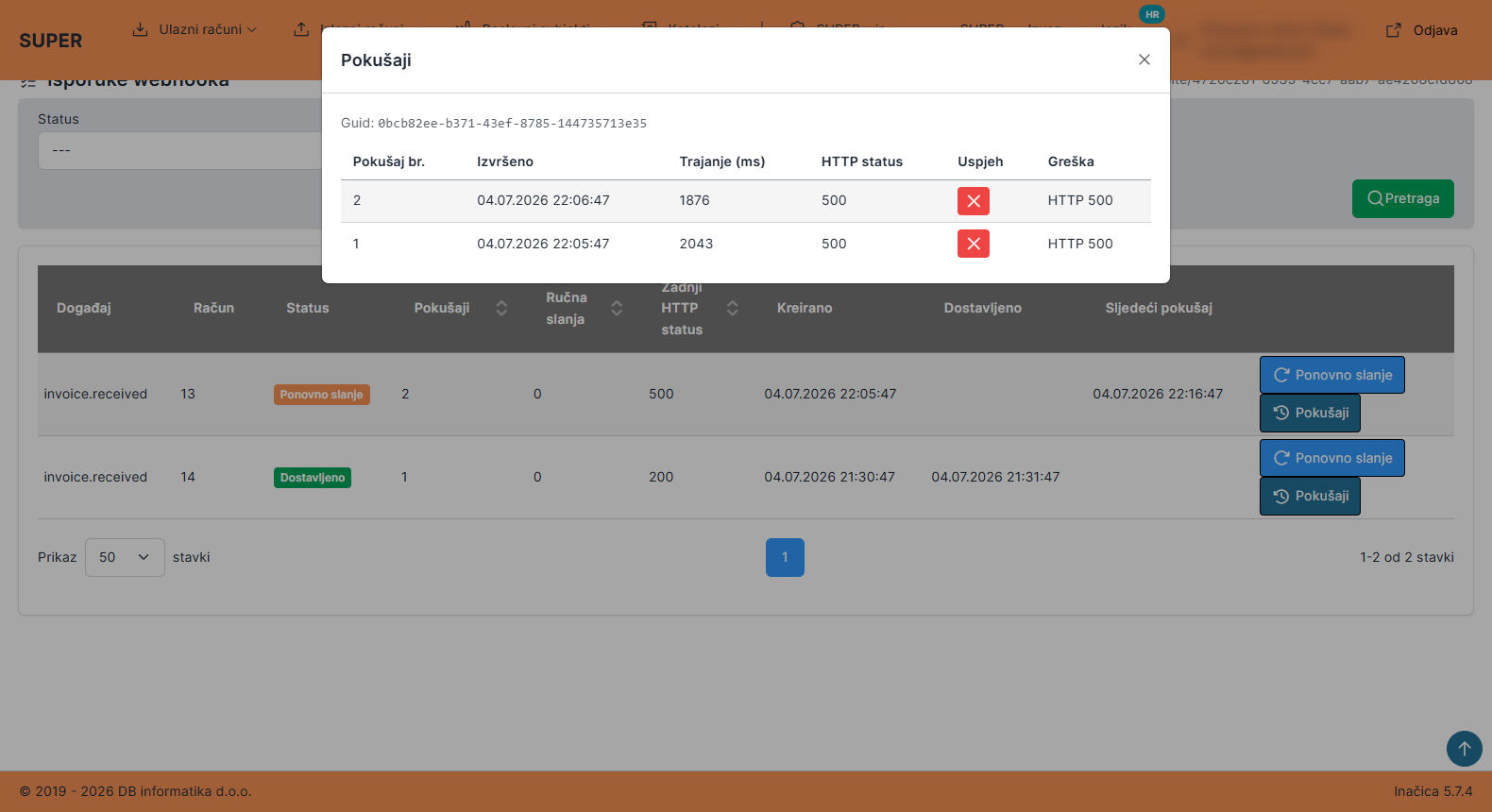
The Ponovno slanje (Resend) button starts a new send right away (it executes within one minute). The Pokušaji (Attempts) button opens the history of all send attempts with time, HTTP status, and any error.
7. Automatic endpoint deactivation
If 5 deliveries in a row end as failed (final), the system turns the endpoint off and sends an email to your company. The edit page then shows a red alert with the reason.
When you fix the problem on your side, turn the endpoint back on: check Aktivan (Active) + OK (Save). That also resets the failure counter.